
VB.NET Write Text File – WriteAllText, Encoding (2026)
With File.WriteAllText you can write a text file in VB.NET in just a few lines. This post covers the simple variant, writing with UTF-8 encoding, the asynchronous version available since .NET 5, and a practical example with configuration files – with complete example code.
Looking to read a text file instead? → VB.NET Read Text File.
Inhaltsverzeichnis
Code – Write a Text File in VB.NET
To get started, create a simple UI with 2 labels, 2 textboxes, and a button like the one below:
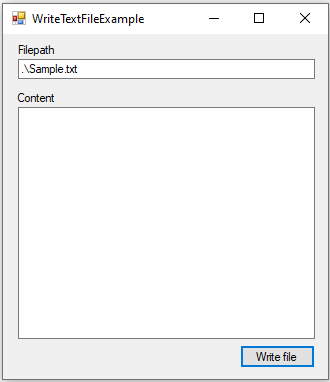
Writing the File
Required Classes and Methods
The ability to create, write, read, and perform other file-based operations can be found in the File class. Searching for „write“ in the .NET Framework documentation reveals the following important methods:
WriteAllText(filepath, contents)
This method writes the specified string to a text file at the given file path. If the file doesn’t exist, it will be created – otherwise it will be overwritten.
WriteAllText(filepath, contents, encoding)
Same as the method above, but here the encoding is explicitly specified to ensure special characters are stored correctly.
WriteAllTextAsync(filepath, contents, cancellationToken)
This method is only available in .NET 5+ projects. It is particularly beneficial for larger files thanks to its asynchronous file access.
Let’s Go
Open the button’s click event handler, for example via the Form Designer with a double-click on the button.
We can then write the file in our handler as follows:
    Private Sub btnWriteFile_Click(sender As Object, e As EventArgs) Handles btnWriteFile.Click
        Dim filepath = tbFilepath.Text.Trim()
        Dim content = tbContent.Text
        WriteFileSync(filepath, content)
        ' WriteFileWithEncodingSync(filepath, content)
        ' WriteFileAsync(filepath, content)
    End Sub
First, we grab the file path from the textbox and use Trim() to remove any leading or trailing whitespace. The content for the file is stored in the variable „content“, taken from the „tbContent“ textbox. Finally, we call the writing method.
WriteFileSync(filepath, content)
This is the simplest way to write text to a file. We call the „WriteAllText“ method of the File class with the file path and the content as parameters. The write operation is wrapped in a Try Catch block for basic error handling.
WriteFileWithEncodingSync(filepath, content)
Same as the example above, but with an explicit encoding parameter to ensure special characters like umlauts are stored correctly.
WriteFileAsync(filepath, content)
This is the asynchronous variant mentioned above, otherwise identical to the first method „WriteFileSync“.
Practical Examples
A practical example: saving and loading configuration files in .ini format.
Saving/Loading Configuration Files
Ini files (.ini) are a simple format for storing key-value pairs and work well as lightweight configuration for desktop applications.
IniFile Class
First, we create a basic IniFile class. It demonstrates how to write and read a text file in ini format. Besides the file name, directory, and resulting file path, the ini file also has a name.
Possible improvements include using different encodings and serializers.
Imports System.IO

Public Class IniFile

    ''' <summary>
    ''' Gets or Sets the path to the directory, containing the file
    ''' </summary>
    Public Property Directory As String

    ''' <summary>
    ''' Gets or Sets the filename of the file
    ''' </summary>
    Public Property FileName As String

    ''' <summary>
    ''' Returns the complete path to the ini file
    ''' </summary>
    Public ReadOnly Property FilePath As String
        Get
            Return Path.Combine(Directory, FileName)
        End Get
    End Property

    Public Property Sections As List(Of IniFileSection)

    Sub New()
        Sections = New List(Of IniFileSection)
    End Sub

    Public Async Function Save() As Task
        Dim contents = ToIniFileString()
        Await File.WriteAllTextAsync(FilePath, contents)
    End Function

    Public Shared Async Function Load(filePath As String) As Task(Of IniFile)
        Dim fileParts = filePath.Split("\")
        Dim iniFile = New IniFile()
        iniFile.Directory = String.Join("\", fileParts.Take(fileParts.Length - 1))
        iniFile.FileName = fileParts.Last()
        Dim contents = Await File.ReadAllTextAsync(filePath)
        Dim nonEmptyLines = contents.Split(Environment.NewLine).Where(Function(x) Not String.IsNullOrWhiteSpace(x))

        ' = nothing is a workaround for "could be nothing" warning - #irony
        Dim currentSection As IniFileSection = Nothing
        For Each line In nonEmptyLines
            Dim isNewSection = line.StartsWith("[") AndAlso line.EndsWith("]")
            If isNewSection Then
                Dim sectionName = line.Replace("[", "]").Replace("]", "")
                currentSection = New IniFileSection(sectionName)
                iniFile.Sections.Add(currentSection)
                Continue For
            End If

            Dim isNewEntry = line.Contains("=")
            If isNewEntry Then
                Dim entryParts = line.Split("=")
                Dim key = entryParts(0)
                Dim value = entryParts(1)
                Dim entry = New IniFileSectionEntry(key, value)
                currentSection.Entries.Add(entry)
                Continue For
            End If
        Next
        Return iniFile
    End Function

    Public Function ToIniFileString() As String
        Dim sectionStrings = New List(Of String)
        For Each section In Sections
            sectionStrings.Add(section.ToIniFileString())
        Next
        Return String.Join(Environment.NewLine, sectionStrings)
    End Function

    Public Overrides Function ToString() As String
        Return $"IniFile: {FilePath}"
    End Function

End Class
IniFileSection Class
Next up is the IniFileSection class, which holds the section name and its entries.
The helper method „ToIniFileString“ returns all data in ini format.
Public Class IniFileSection

    Public Property Name As String

    Public Property Entries As List(Of IniFileSectionEntry)

    Sub New(name As String)
        Me.Name = name
        Entries = New List(Of IniFileSectionEntry)
    End Sub

    Public Function ToIniFileString() As String
        Dim str = $"[{Name}]"
        For Each entry In Entries
            str &= $"{Environment.NewLine}{entry.ToIniFileString()}"
        Next
        Return str
    End Function

    Public Overrides Function ToString() As String
        Return $"IniFileSection: {Name}"
    End Function

End Class
IniFileSectionEntry Class
Finally, the IniFileSectionEntry class holds the key and its corresponding value. Its helper method converts the entry to ini format.
Public Class IniFileSectionEntry

    Public Property Key As String

    Public Property Value As String

    Sub New()
        Key = ""
        Value = ""
    End Sub

    Sub New(key As String, value As String)
        Me.Key = key
        Me.Value = value
    End Sub

    Public Function ToIniFileString() As String
        Return $"{Key}={Value}"
    End Function

    Public Overrides Function ToString() As String
        Return $"IniFileSectionEntry: {Key}={Value}"
    End Function

End Class
Console Application Example
Last but not least, the console module with a couple of example calls. Download one of the example projects to see the full details.
Module Program

    Sub Main(args As String())
        Console.Title = "TextFileCreateIniFile"
        DoExampleReadWrite()
    End Sub

    Public Async Sub DoExampleReadWrite()
        ' A
        ' put the config file into the same directory as the exe file
        ' or change the path
        Dim ini = Await IniFile.Load(".\example-config.ini")
        Console.WriteLine("Press Enter to overwrite the first sections, first entries value with TEST")
        Console.ReadLine()
        ini.Sections(0).Entries(0).Value = "TEST"
        Console.WriteLine("Press Enter to save the changes to file")
        Console.ReadLine()
        Await ini.Save()
        Console.WriteLine("File saved, press enter to leave")
        Console.ReadLine()
    End Sub

End Module
Use File.WriteAllText(filepath, content) from the System.IO namespace. The method creates the file if it doesn’t exist and overwrites it otherwise.
Pass the encoding as a third parameter: File.WriteAllText(filepath, content, System.Text.Encoding.UTF8). This ensures special characters like umlauts are stored correctly.
Yes. Since .NET 5 you can use Await File.WriteAllTextAsync(filepath, content). This is especially useful for larger files where you don’t want to block the UI thread.
WriteAllText completely overwrites an existing file. If you want to append content instead, use File.AppendAllText(filepath, content).
Complete Code – Write a Text File in VB.NET
Imports System.IO

Public Class Form1

    Private Sub btnWriteFile_Click(sender As Object, e As EventArgs) Handles btnWriteFile.Click
        Dim filepath = tbFilepath.Text.Trim()
        Dim content = tbContent.Text

        WriteFileSync(filepath, content)
        ' WriteFileWithEncodingSync(filepath, content)
        ' WriteFileAsync(filepath, content)
    End Sub

    Private Sub WriteFileSync(filepath As String, content As String)
        Try
            File.WriteAllText(filepath, content)
        Catch ex As Exception
            MessageBox.Show("Couldn't write file sync: " & ex.Message)
        End Try
    End Sub

    Private Sub WriteFileWithEncodingSync(filepath As String, content As String)
        Dim encoding = System.Text.Encoding.UTF8
        Try
            File.WriteAllText(filepath, content, encoding)
        Catch ex As Exception
            MessageBox.Show("Couldn't write file sync with encoding: " & ex.Message)
        End Try
    End Sub

    ' only available with .NET 5
    ' not in .NET Framework Apps
    'Private Sub WriteFileAsync(filepath As String, content As String)
    '    Try
    '        File.WriteAllTextAsync(filepath, content)
    '    Catch ex As Exception
    '        MessageBox.Show("Couldn't write file async: " & ex.Message)
    '    End Try
    'End Sub

End Class