
VB.NET Async Await – Step by Step with Example (2026)
With Async and Await you prevent your VB.NET application from freezing during long-running operations. In this post you will see step by step how to switch from Thread.Sleep to Task.Delay, what Fire & Forget means, and when you need to create your own Tasks, with GIF demos and complete example code.
Inhaltsverzeichnis
Code – VB.NET Await
In the following section I will explain the details of how the code works.
Without async
We start with the synchronous approach, as you can see in the animated image below. I click the button, which does its work and executes the 3 statements one after another. Unfortunately the „Sleep“ call from the Thread class runs on the GUI thread, which causes the application to stutter. The classic alternative would be a BackgroundWorker, but Async/Await is far more elegant.
This happens after the handler has executed the first „WriteLine“ statement and then literally goes to „sleep“. I don’t know about you, but nobody can talk to me while I’m sleeping, and it’s the same here!
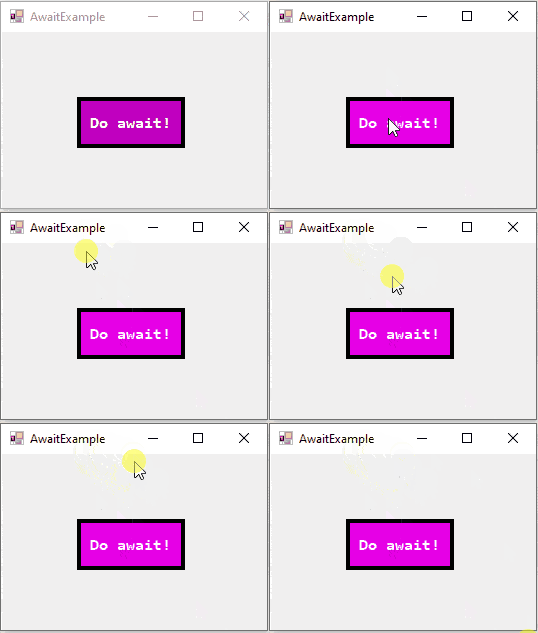
For the next step, open the button’s click event handler and look at the following code:
Private Sub btnAwait_Click(sender As Object, e As EventArgs) Handles btnAwait.Click
    Debug.WriteLine("Before")
    Thread.Sleep(3000)
    Debug.WriteLine("After")
End Sub
To really understand and „feel“ the upcoming effect, click the button once. Then try to move the form, and you will notice that nothing responds. Even though I’m simply trying to drag the form by its border, nothing happens at all.
This is because we are literally putting the main thread, i.e. the GUI thread (the graphical interface), to sleep.
Frustration builds up – User Experience (UX)
The interface freezes, the user clicks again and in the worst case triggers multiple database calls. Anyone who has stared at a frozen application for minutes knows how frustrating that is.
Going async – with the VB.NET Await statement
Now we convert the example using the modern approach, i.e. „VB.NET Await“ or „VB.NET Async Await“, available since Visual Studio 2012. In this case we can achieve it with 2 very simple changes! First, we mark the method as asynchronous using the Async modifier.
Then we replace the „Thread Sleep“ wait function with its equivalent from the Task class called Delay.
Private Async Sub btnAwait_Click(sender As Object, e As EventArgs) Handles btnAwait.Click
    Debug.WriteLine("Before")
    Await Task.Delay(3000)
    Debug.WriteLine("After")
End Sub
The last addition is the Await operator, which, simply put, waits for the task returned by Delay to complete.
No more freezing!
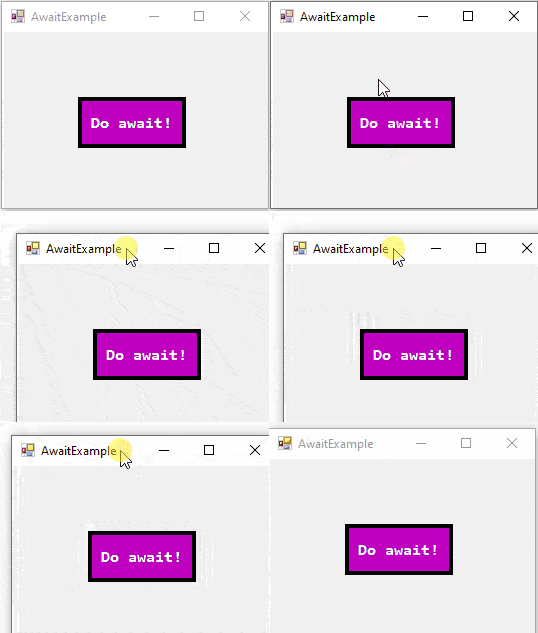
No anti-aging products needed here, just kidding. Nothing freezes anymore. Try it right away and click the button again after making the changes. The button’s hover effect will remain visible and with a sufficient delay interval you will also be able to move the form.
Async Await is not always that simple
Now we have reached an important point: unfortunately we cannot always proceed this easily.

Suitable prerequisites
To use Async/Await we need suitable prerequisites, or we have to create them ourselves. You cannot simply mark any arbitrary method as Async and hope it always works. To wait for a task to complete using the Await operator, we need an actual task to wait for.
Some .NET Framework functions return a task as their return value. This includes the „Task.Delay“ function shown above. Further examples are HttpClient.GetStringAsync, File.ReadAllTextAsync (see also: VB.NET Read Text File) or SqlCommand.ExecuteReaderAsync, all of which return a Task that you can await.
Creating your own prerequisites
When we don’t find such convenient prerequisites, i.e. no ready-made task to await, we have to build our own. But even that is not really difficult with the modern .NET Framework, provided you know how! We will leave this topic aside for now and focus on a few more basics first.
Linear flow – The usual business
Before we deal with creating our own tasks, let’s look at a small foundational concept. Beginners often confuse different situations, so I want to briefly explain 2 basics here. Normally the code we write is executed line by line, i.e. linearly.
Imagine you have 3 statements defined in a method called „DoStatements“:
Private Sub DoStatements()
    Statement1()
    Statement2()
    Statement3()
End Sub
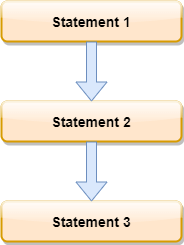
When you call the „DoStatements“ method, the statements inside (1, 2, 3) are executed one after another. To make the contrast even more obvious, call the „DoStatements“ method 3 times. Calling „DoStatements“ is of course itself a statement, just sayin‘.
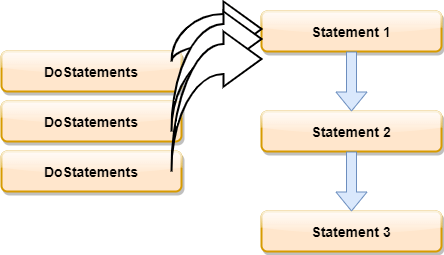
Each individual call to the parent method (DoStatements) in turn calls the child statements 1-3.
The execution order would be:
- DoStatements
- Statement 1
- Statement 2
- Statement 3
- DoStatements
- Statement 1
..and so on.
Fire and Forget
Now, regarding the „Async Await“ pattern, we make a small change to the code above and see how it behaves. Mark the „DoStatements“ method as Async by appending the corresponding keyword: Instead of a „private method“, it is now a „private, asynchronous method“:
Private Async Sub DoStatements()
    Statement1()
    Statement2()
    Statement3()
End Sub
Unfortunately not much happens at first, except that we get a new error message. We are warned that we declare „Hey, this method should run asynchronously“, but we don’t actually perform any Await operations inside it. Basically it tells us: „Why should this method be async if you’re not doing any async stuff in there!?“.

To demonstrate „Fire & Forget“ properly, we either follow the IDE’s suggestion or use a small trick.
Workaround for the demo
Simply call the following in the first line of the „DoStatements“ method:
Await Task.CompletedTask
Like this (or somewhere else in the Sub):
Private Async Sub DoStatements()
    Await Task.CompletedTask
    Statement1()
    Statement2()
    Statement3()
End Sub
This way we await a completed task to trick the „Async Sub“ into thinking asynchronous work is happening. Please note that this code is for demonstration purposes only! The error message above is now gone and the Sub runs asynchronously.
Now it runs a(sync)hronously
If you now call the „DoStatements“ method 3 times, it will not execute the same way as before.
Take a look at this diagram:
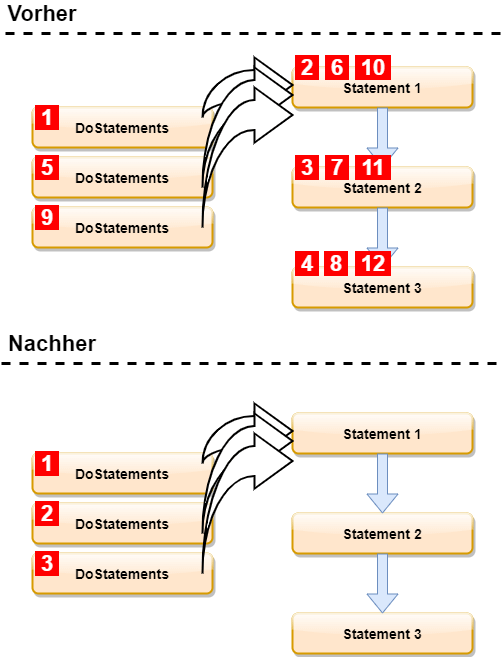
Previously steps 4 and 5, i.e. subsequent calls to „DoStatements“, waited for the previous calls to finish. This is now different because steps 1-3 are fired off one after another. As a result they run more or less simultaneously in the background.
Use cases for Fire & Forget
For a practical use case of our „Fire & Forget“ approach from above, think of a chat server. I myself have used something similar for a kind of order server at a former employer. Sure, you could avoid the GUI thread entirely and work in a console application instead.
However that is not always possible and naturally depends on the client’s requirements. A rudimentary version could look something like this (you could of course add Enum values for different states like „Starting, Stopping, Running“ etc.):
Public Class ChatServer

    Public Property IsRunning As Boolean

    Public Async Sub Start()
        CheckAndThrowIfAlreadyRunning()
        IsRunning = True
        RaiseEvent Started(Me, EventArgs.Empty)
        While IsRunning
            Await DoServerWork()
        End While
        RaiseEvent Stopped(Me, EventArgs.Empty)
    End Sub

    Private Function DoServerWork() As Task
        ' simulate some work..
        Return Task.Delay(200)
    End Function

    Public Sub [Stop]()
        CheckAndThrowIfNotRunning()
    End Sub

    Private Sub CheckAndThrowIfAlreadyRunning()
        If IsRunning Then
            Throw New InvalidOperationException("The ChatServer is already running")
        End If
    End Sub

    Private Sub CheckAndThrowIfNotRunning()
        If Not IsRunning Then
            Throw New InvalidOperationException("The ChatServer isn't running")
        End If
    End Sub

    Public Event Started As EventHandler

    Public Event Stopped As EventHandler

End Class
If you then create an email server or additional similar servers, they obviously need to run simultaneously. Such a server could, for example, write logs asynchronously to a file, see VB.NET Write Text File for how that works. Let’s start these rudimentary server examples in a Forms application:
Public Class Form1

    Private _chatServer As ChatServer

    ' Private _emailServer As EmailServer

    ' Private _orderServer As OrderServer

    Sub New()
        InitializeComponent()
        _chatServer = New ChatServer()
        ' _emailServer = New EmailServer()
        ' _orderServer = New OrderServer()
    End Sub

    Private Sub Form1_Load(sender As Object, e As EventArgs) Handles MyBase.Load
        StartAllServers()
    End Sub

    Private Sub StartAllServers()
        ' fires off all async, not waiting for a single "start" to "finish"
        _chatServer.Start()
        ' _emailServer.Start()
        ' _orderServer.Start()
    End Sub

End Class
As noted in the comment, the „StartAllServers“ method fires off all start calls one after another. It does not wait for any of them to complete, fire & forget. You could of course subscribe to the individual events and add more.
This way you could create a „decoupled“ communication between the GUI and possibly also the individual „server modules“.
FAQ
Await waits for an asynchronous task to complete without blocking the GUI thread. The application remains responsive during the wait.
Thread.Sleep blocks the current thread completely and the GUI freezes. Await Task.Delay releases the thread and resumes the method after the time has elapsed, without blocking the interface.
Fire and Forget means calling an Async method without waiting for it to finish. The method continues to run in the background while the calling code proceeds immediately.
No. An Async method must contain at least one Await operator. Without Await the method runs synchronously despite the Async modifier and the compiler issues a warning.